
Photos in.
PDF out.
Turn scans, receipts, notes and screenshots into one tidy PDF. Arrange your pages, choose the finish, then download it — all in your browser.
Drop your images here
JPG, PNG, GIF, WEBP and more · up to 100 MB total
Arrange
Add your photos and put every page in the order you want.
Tune
Pick a compact, balanced or crisp finish for your PDF.
Download
Create one clean PDF, ready to send, save or share.
Everything you need to turn images into a PDF.
Compress without the hassle
Reduce image size before creating your PDF while keeping your pages clear and readable.
Your files stay private
Images are processed directly in your browser instead of being uploaded to a server.
Ready in a few clicks
Add your images, choose your settings and download your finished PDF in seconds.
Images to PDF Compressor and Converter
Convert JPG, PNG, and WebP images into a PDF online with a simple browser-based tool. You can select one image or multiple images and combine them into a single PDF document.
Whether you need to turn photos into a document, combine scanned pages, organize screenshots, or prepare files for printing, this tool makes the process quick and easy. You can review your images, arrange their order, create the PDF, and download the finished file.
The conversion happens directly in your browser, so your images do not need to be uploaded to a server.
Convert Images to PDF Online
Creating a PDF from images and convert png to jpg images only takes a few simple steps. You do not need a complicated PDF editor or desktop software.
How to Convert Images to PDF
- Upload your images from your computer or mobile device.
- Review and arrange the images in the order you want.
- Create the PDF to combine the selected images into one document.
- Download the finished PDF and save it to your device.
You can use this process for a single picture or several images. When multiple files are selected, each image can become a page in the resulting PDF.
Images to PDF Compressor and Converter
JPG and JPEG are widely used for photographs and everyday images. If you have photos saved as JPG files, you can turn them into a PDF without opening a traditional image editor.
A JPG to PDF converter is useful when you need to:
- Turn photos into a PDF document
- Combine several JPG photos into one file
- Prepare images for printing
- Share multiple pictures as one document
- Submit JPG files in PDF format
- Organize photos for storage
You can add one JPG image or select several files and compress images, depending on what you need for your document.
PNG to PDF Converter
PNG is commonly used for screenshots, graphics, illustrations, logos, and other images that need sharp details. You can convert PNG files into PDF format and combine multiple PNG images into one document.
For example, if you have several screenshots or scanned pages saved as PNG files, converting them into a PDF can make them easier to organize and share.
Keep in mind that PDF pages are created from your images, so the final appearance depends on the original image dimensions and quality.
WebP to PDF Converter
WebP is a modern image format often used on websites because it can provide efficient image compression. If you have WebP images that need to be placed into a PDF, you can add them to the converter.
This can be useful when images downloaded from a website or saved from another application are in WebP format and you need a more widely used document format.
Convert Multiple Images Into One PDF
You do not have to create a separate PDF for every image. You can select multiple supported images and combine them into one PDF file.
This is useful for creating a document from:
- Scanned pages
- Receipts
- Invoices
- School notes
- Photos
- Screenshots
- Forms
- Project pages
- Personal documents
For example, if you scan a five-page document and each page is saved as a separate image, you can combine those five images into one PDF. The result is easier to send, store, print, and upload.
Arrange Images Before Creating Your PDF
The order of your images can be important, especially when creating a document from scanned pages.
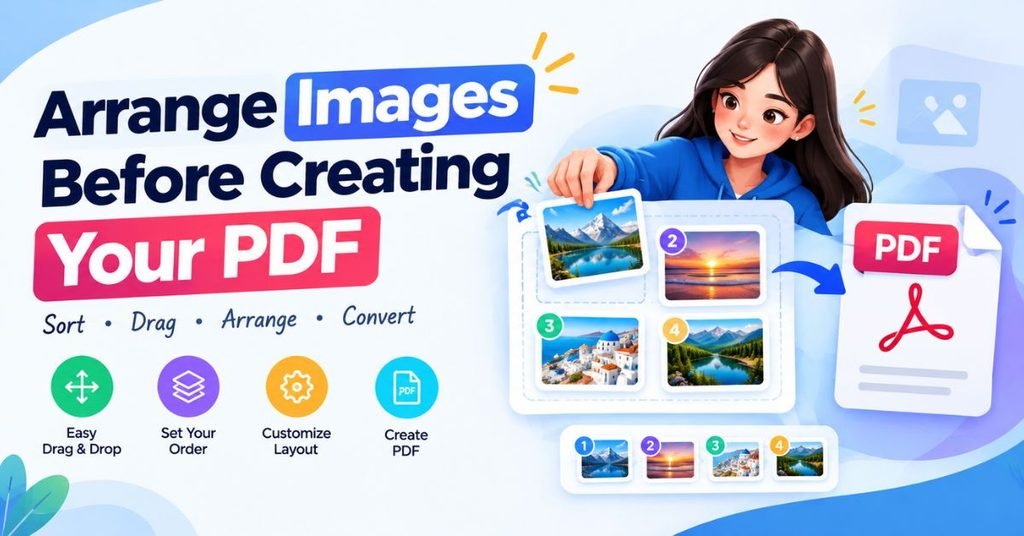
Before generating the PDF, review your selected files and make sure they are arranged correctly. Put the first page first, followed by the remaining pages in the order they should appear.
Checking the page order before conversion helps prevent mistakes in the finished document.
Compress Your PDF to Reduce File Size
PDFs made from high-resolution images can sometimes become large. If your document is too big to upload or share easily, PDF compression can help reduce the file size.
A smaller PDF can be more convenient for:
- Email attachments
- Website uploads
- Online forms
- Messaging apps
- Cloud storage
- Document sharing
Compression may reduce some image data depending on how the process works. For important documents, open the compressed file and check that the text, photos, and other details are still clear.
What Image Formats Are Supported?
The converter supports common image formats used for photos and online content.
| Image Format | Supported | Common Use |
|---|---|---|
| JPG / JPEG | Yes | Photos and general images |
| PNG | Yes | Screenshots and graphics |
| WebP | Yes | Web images and digital content |
These formats cover many common image conversion needs. If your file uses a different format, you may need to convert it to a supported format first.
Why Convert Images to PDF?
An image and a PDF serve different purposes. An image is usually designed as a single visual file, while a PDF can bring several pages together into one organized document.
Combine Several Images
Instead of sending many individual files, you can put related images into one PDF.
Create Scanned Documents
Scanned pages are often saved as image files. Combining them into a PDF creates one document that is easier to manage.
Make Images Easier to Share
Sharing one PDF can be more convenient than sending a large group of separate images for every type of meaning visit meansstock.
Prepare Files for Printing
PDF is commonly used for printable documents. Putting your images into one PDF can make the printing process easier to manage.
Organize Your Files
A collection of related photos or screenshots can be stored as one PDF instead of many separate files.
Meet Upload Requirements
Some websites, applications, schools, workplaces, or online forms may request a PDF instead of individual image files. Converting your images gives you a document that is ready for those situations.
Image Quality and PDF Size
The quality and dimensions of your original images affect the final PDF. High-resolution images contain more visual information and may produce a larger document.
If you need a smaller file, you can consider using appropriately sized images before creating the PDF and then compressing the finished document.
For documents containing small text, avoid excessive compression. Clear text is usually more important than achieving the smallest possible file size.
Convert Images to PDF on Your Phone
You can use the converter from a mobile browser if your images are stored on your smartphone or tablet.
The basic process remains the same:
- Open the converter in your mobile browser.
- Select images from your device.
- Review their order.
- Create the PDF.
- Download the finished document.
This is useful when you have taken photos of documents or receipts with your phone and want to turn them into a single PDF without transferring the files to a computer.
Do I Need to Install Software?
No. You can use the converter directly from your web browser.
There is no need to install a separate PDF editor simply to turn images into a PDF. This makes the tool convenient when you need to complete a quick conversion on a computer, phone, or tablet.
Is the Images to PDF Converter Free?
Yes. The converter is free to use for converting supported images into PDF format.
You can use it for common tasks such as combining photos, preparing scanned pages, creating printable documents, and organizing image files.
Are My Images Uploaded to a Server?
No. The image processing is designed to happen directly in your browser. Your selected images do not need to be uploaded to a remote server for the conversion.
Browser-side processing can also be useful for privacy because your image files can remain on your device during the conversion process.
As with any online tool, avoid sharing sensitive information unnecessarily and review the privacy details if you are working with confidential documents.
FAQs
How do I convert images to PDF?
Upload your JPG, PNG, or WebP images, review their order, and create the PDF. You can then download the finished document to your device.
Can I convert JPG to PDF?
Yes. JPG and JPEG images can be converted into PDF format. You can also combine multiple photos into one PDF document.
Can I convert PNG to PDF?
Yes. PNG images are supported and can be turned into PDF pages. Multiple PNG files can also be combined into one document.
Can I convert multiple images into one PDF?
Yes. Select multiple supported images and combine them into a single PDF. You can review and arrange the images before creating the file.
Can I compress an image PDF?
Yes. If the PDF created from your images is too large, you can use the compression feature to reduce its file size.
How can I reduce PDF file size?
You can compress the finished PDF to make it smaller. Using appropriately sized images and avoiding unnecessarily high resolution can also help keep the document size manageable.
Is the images to PDF converter free?
Yes. The tool is free to use for converting supported image formats into PDF files.
Can I convert images to PDF on my phone?
Yes. You can open the converter in a mobile browser and select images directly from your phone or tablet.
Do I need to install software?
No. The converter works in your browser, so you do not need to install separate PDF conversion software.
Are my images uploaded to a server?
No. Processing takes place directly in your browser, so your images do not need to be uploaded to a server for conversion.